

Price Match Guarantee

In-stock parts ship the same day

365-Day Return Policy
Price Match GuaranteeGET PRO PRICING
Video & Articles: Appliance & Equipment RepairKitchenaid Double Oven Gas Range User Interface Panel Replacement #W11101833 
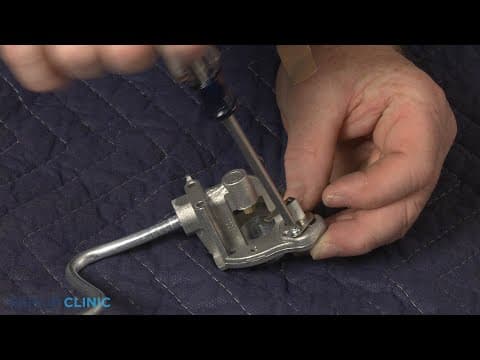
Kitchenaid Double Oven Gas Range User Interface Panel Replacement #W11101833
Skill Level
Total Parts Cost
$355.52Estimated Savings
$112.5003:30
- Description
This video provides step-by-step instructions for replacing the user interface board on a Kitchenaid double oven gas range (model #KFGD500ESS04). The most common reason for replacing the board is if none of the buttons or knobs are functioning.
All of the information in this board replacement video is applicable to the following brands: Maytag, Amana, Magic Chef, Whirlpool, Tappan, Estate, Kitchenaide
All of the information in this board replacement video is applicable to the following brands: Maytag, Amana, Magic Chef, Whirlpool, Tappan, Estate, Kitchenaide
Step By Step Instructions
1
Before you replace the user interface panel in your gas range…
2
…be sure to unplug the power cord or shut off the power supply.
3
Pull the range away from the wall so you can access the rear of the appliance.
4
Using a phillips-head screwdriver, unthread the four screws securing the upper rear access panel.
5
Disconnect the wire connecter from the control board to fully release the panel.
6
Next, disconnect the ribbon connecter from the board.
7
Unthread the four mounting screws to release the board from the control panel.
8
Unthread the screws securing the user interface panel.
9
You can now pull the old panel down to detach.
10
Install the new user interface panel…
11
…by aligning it on the control panel.
12
Thread and tighten the screws to secure.
13
Reposition the control board…
14
…and thread the mounting screws.
15
Connect the ribbon connecter to the board.
16
Reinstall the upper rear access panel by first connecting the wire connecter to the board.
17
Align the panel and secure it with the screws.
18
Plug the power cord back in or restore the power supply…
19
…and the gas range should be ready for use.
Description
This video provides step-by-step instructions for replacing the user interface board on a Kitchenaid double oven gas range (model #KFGD500ESS04). The most common reason for replacing the board is if none of the buttons or knobs are functioning.
All of the information in this board replacement video is applicable to the following brands: Maytag, Amana, Magic Chef, Whirlpool, Tappan, Estate, Kitchenaide
All of the information in this board replacement video is applicable to the following brands: Maytag, Amana, Magic Chef, Whirlpool, Tappan, Estate, Kitchenaide
Step-By-Step Instructions
1
Before you replace the user interface panel in your gas range…
2
…be sure to unplug the power cord or shut off the power supply.
3
Pull the range away from the wall so you can access the rear of the appliance.
4
Using a phillips-head screwdriver, unthread the four screws securing the upper rear access panel.
5
Disconnect the wire connecter from the control board to fully release the panel.
6
Next, disconnect the ribbon connecter from the board.
7
Unthread the four mounting screws to release the board from the control panel.
8
Unthread the screws securing the user interface panel.
9
You can now pull the old panel down to detach.
10
Install the new user interface panel…
11
…by aligning it on the control panel.
12
Thread and tighten the screws to secure.
13
Reposition the control board…
14
…and thread the mounting screws.
15
Connect the ribbon connecter to the board.
16
Reinstall the upper rear access panel by first connecting the wire connecter to the board.
17
Align the panel and secure it with the screws.
18
Plug the power cord back in or restore the power supply…
19
…and the gas range should be ready for use.
Applicable Product Model
Related Articles & Videos
07:46
Part Replacement
Kitchenaid Double Oven Gas Range Bake Burner Tube Igniter Replacement #WP7432P143-60
05:37
Part Replacement
Kitchenaid Double Oven Gas Range Left Front Burner Valve Replacement #W10718180
01:31
Part Replacement
Kitchenaid Double Oven Gas Range Left Front Burner Base Replacement #WPW10406878
04:10
Part Replacement
Kitchenaid Double Oven Gas Range Broil Igniter Replacement #WPW10324738
06:05
Part Replacement
Kitchenaid Double Oven Gas Range Surface Igniter Replacement #W11208293




Our Story
Family-owned and operated since 1912, Burke America Parts Group is the longest-running genuine appliance, HVAC, and outdoor power equipment parts solution in North America. At Repair Clinic, we're proud to be an international brand trusted by the pros as well as the DIY community.
About Repair Clinic
© 2026 RepairClinic.com